Top 5 Voice Commands to Speed Up Your Writing
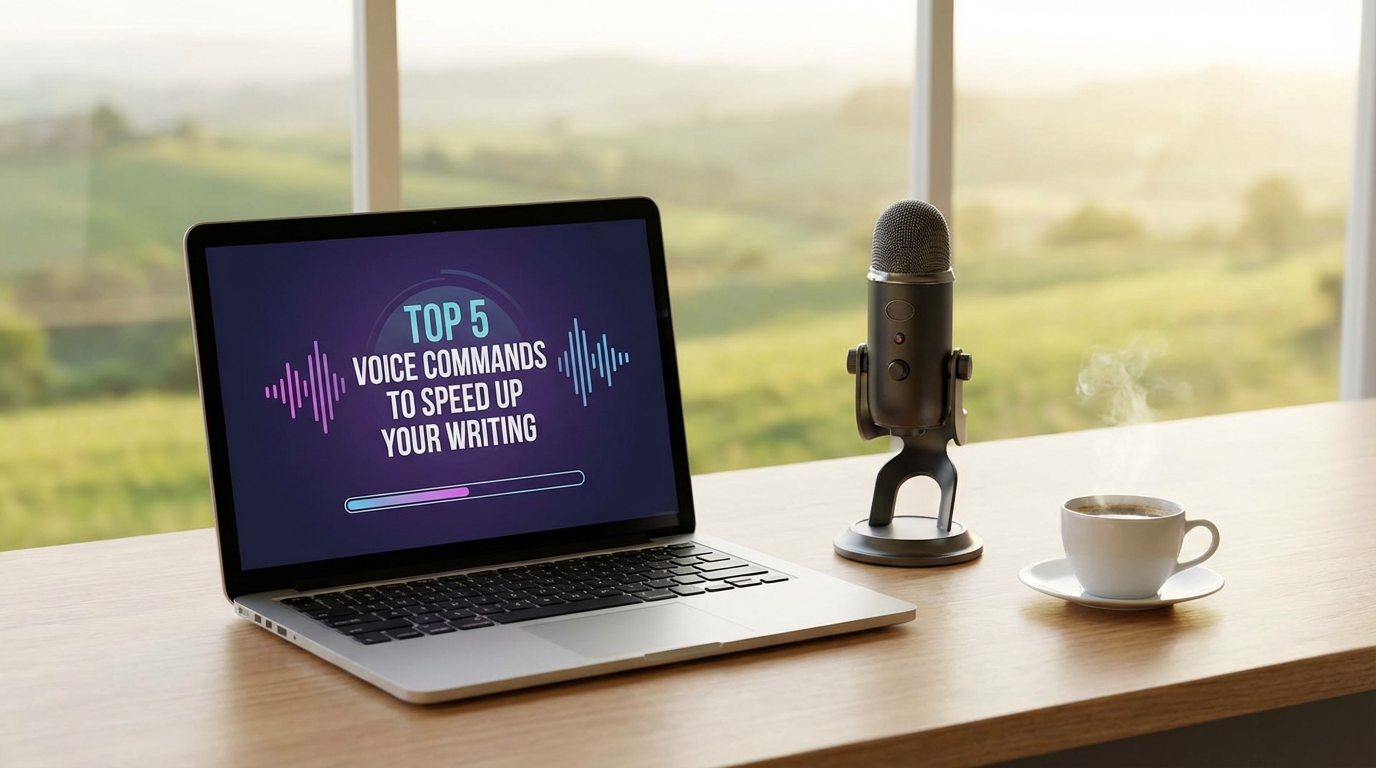
Voice dictation is more than just speaking words onto a page. It's about translating your unstructured thoughts into a structured, readable format. While Spoken excels at natural language transcription, mastering a few key formatting commands can double your productivity.
Here are the top 5 commands used by our most efficient users.
1. "New Paragraph" (or "Next Paragraph")
This is the golden command. When we speak naturally, we tend to ramble. In writing, however, whitespace is king.
Instead of creating a dense wall of text, get into the habit of saying Let's review the key points. New Paragraph.
- Result: Spoken inserts two line breaks, creating a clean separation between ideas.
- Best for: Email replies, blog posts, and separating dialogue.
2. "Bullet Point"
Lists are the secret weapon of clear communication. They break down complex topics into digestible chunks.
Simply say "Here are three reasons why this works. New Line. Bullet Point. It saves time. New Line. Bullet Point. It looks cleaner."
- Result: Starts a new line with a bullet character.
- Best for: Meeting agendas, feature lists, and quick summaries.
3. "Open Quote" / "Close Quote"
Whether you're writing fiction or citing a source, you need quotes. Spoken handles these natively.
Say "As Shakespeare famously wrote, Comma, Open Quote, To be or not to be, Close Quote."
- Result: Inserts curly quotes (" ") around your text.
- Best for: Academic writing, journalism, and creative writing.
4. "Dash" or "Hyphen"
Sometimes a comma isn't strong enough, but a period is too stop-and-go. The em-dash is perfect for adding emphasis or an aside.
Say "The project was finally finished Dash after three long months."
- Result: Inserts a hyphen or dash character to break up the sentence.
- Best for: Adding nuance and pauses to complex sentences.
5. Punctuation Control (".", "?", "!")
Spoken features an intelligent Auto Punctuation mode (enabled in Settings), which automatically infers where sentences end. However, sometimes you want specific emphasis.
You can override the AI at any time by explicitly saying "Period", "Question Mark", or "Exclamation Mark".
- Tip: Use explicit punctuation for short, punchy sentences. "I agree Period Let's do it Exclamation Mark"
Bonus: Continuous Mode
If you're writing long-form content like this blog post, open your Settings and enable Continuous Mode. This changes the behavior so Spoken listens indefinitely, transcribing chunks of text whenever you pause to take a breath. It allows for a flow state that manual clicking simply can't match.
Happy dictating!